Your phone buzzes—a new message from an unknown number. You pause, wondering if it’s a scam. Most people recognize that split-second unease. Digital safety basics shape these quick decisions, but few truly think about them.
From social apps to online banking, our actions ripple across work, home, and downtime. Safe habits no longer apply just to “computer experts.” Anyone with a device faces easy mistakes and invisible threats—often disguised as daily routines.
If you’ve ever wondered which digital safety basics matter most or how tiny habits build resilience, you’re in the right place. This guide shares practical, everyday tactics you can actually use.
Passwords in Real Life: Build Strength, Remember Easily
Whenever you create an account, you make a choice—not just about a password, but about the odds a stranger can slip in. The right approach blocks common attacks.
Most people default to what’s easy: pet names, favorite teams, a few numbers. Trouble is, these are easily guessed. Digital safety basics ask for stronger but manageable steps.
Create Patterns You’ll Remember, Not Full Words
Let’s try a quick routine. Imagine you love midnight snacks and your favorite treat is popcorn. Try a phrase: “I eat popcorn at 12!” Abbreviate and mix it up: “IEatP@12!” This kind of password stays memorable but dodges dictionary attacks.
Bonus tip: Add a unique twist for each site—perhaps the site’s first letter at the end. For social media, it becomes “IEatP@12!F”. You get both variety and consistency.
Embrace Password Managers for Peace of Mind
Picture juggling dozens of login details. Typing them into a list or sticky note helps you forget, not stay safe. A password manager keeps them encrypted and suggests unique combinations for every site.
The first sign-up takes a few minutes. Afterward, auto-filling strong passwords replaces risky repeats. If even one account is breached, the damage stays contained.
| Password Approach | Pros | Cons | Actionable Takeaway |
|---|---|---|---|
| Using Favorite Words | Easy to recall | Easy for hackers to guess | Only use as part of a longer, mixed phrase |
| Reusing Old Passwords | Convenient when remembering | One breach exposes many accounts | Change reused passwords right away |
| Password Managers | Strong, randomized passwords for every site | Takes initial setup time | Install one and migrate logins gradually |
| Writing on Paper | Never hacked online | Papers get lost or seen by others | Use only as emergency, hide safely at home |
| Multi-word Passphrases | Easier to remember but complex | Still vulnerable if obvious words used | Add symbols, numbers, and site-specific twists |
Recognizing Phishing Attempts: Spot Fakes Before Clicking
Your inbox pings. The message claims urgent action is needed—your account is “locked,” or you’ve won a prize. Phishing tries to create panic so you’ll skip digital safety basics and click before pausing.
Spotting fakes means reading between the lines. With practice, anyone can build the habit of slow-clicking—waiting an extra beat to verify before reacting.
Common Red Flags in Messages
Watch for strange sender addresses, bad grammar, or links that almost—but not quite—match a website you use. Hover over links without clicking; compare what you see to real URLs you trust.
- Check the sender’s email carefully; one swapped letter or a new domain can signal a scam is afoot.
- Read the greeting. Real companies often use your actual name, not just “customer,” which many phishing scams rely on.
- Look for urgent or threatening language. Unsafe emails often try to make you act fast so you skip thinking things through.
- Hover over any links before clicking. If the web address looks unfamiliar, don’t open it—visit the real website directly.
- Avoid opening attachments from contacts you don’t recognize. Even friends’ emails can be compromised and used to trick you.
If a message feels off, trust your instinct. Pause, take a breath, and double-check through official channels when in doubt.
Turning Slow Clicking into a Habit
Picture a quick habit reset: Every time you receive a new message, count to three before clicking any link or downloading an attachment. This routine creates space for safety checks.
- Formally pause before you click, even if you think you recognize the sender—accidents happen fastest when you’re in a hurry.
- If something sounds wrong (unexpected requests, typos, generic greetings), check with the sender outside the original message.
- Bookmark official sites. Always visit them directly instead of following an email link—this avoids common traps where a single click can compromise your data.
- Update your friends and family. Teach them the habit of “slow clicking” by modeling it—one small pause can keep everyone safer.
Introducing this routine retrains your instincts: safety before speed, every time.
Securing Personal Devices: Steps You Can Take Right Now
Secure devices block intruders and eavesdroppers, no fancy software required. Digital safety basics start with locked screens, regular updates, and a little attention to device behavior.
This section shares small tweaks with outsized effects—no technical background needed.
Keep Systems Updated and Lock Down Your Screen
Updates patch vulnerabilities—meaning yesterday’s oversight can be tomorrow’s open door. Set devices to auto-update where possible. When prompted to restart, do it as soon as convenient, not weeks later.
A locked screen works like a front door—don’t leave it open, even if you’re home alone. Shorten your device’s auto-lock timer and use PINs or fingerprint sensors, whatever feels quickest for you to use but slowest for a stranger.
Monitor Suspicious Activity on Your Phone or Laptop
Odd pop-ups, battery draining faster, or random apps appearing are all red flags. Don’t brush these off. Investigate or run a trusted malware scan if something feels strange.
Notice friends receiving bizarre messages from “you”? Change your passwords immediately—it often means your account was compromised or your device infected. Digital safety basics are about noticing patterns, not ignoring warning signs.
Social Media Habits: Balancing Sharing and Security
It’s tempting to share every life twist, but not every detail belongs online. Digital safety basics include controlling who sees your stories, photos, and opinions—because even innocent info can be misused.
Here’s a useful comparison: You wouldn’t announce a vacation in an empty café and hand out your house keys. Social media leaks feel just as invisible but lead to real-world messes.
Limit What You Reveal and Who Can See It
Double-check profile privacy settings at least once a season. Set posts to “friends only” when possible. Review shared content—does it show your address, detailed routines, or pictures that might give away travel plans?
If you’re tagged in photos or comments, preview what’s visible before it’s public. Some platforms allow you to approve tags in advance, giving you a final say in what appears on your profile.
Spot Oversharing Scenarios Before They Spread
Imagine a friend posts a video from your home, accidentally showcasing your new laptop’s brand and serial number. You might never notice until something goes missing or a warranty claim gets denied.
Pause before resharing details. Ask, “Could this post help someone guess my passwords, security questions, or daily movements?” If the answer isn’t a clear “no,” revisit your privacy settings.
Public Wi-Fi Reality Check: Using Open Networks Without Risks
Coffee shop networks look handy but disguise invisible dangers. Unsecured Wi-Fi invites eavesdroppers to peek at your logins or personal data. Strong digital safety basics include tactics for public connections.
Build a mental habit: treat every public Wi-Fi like a hotel lobby—use the amenities with care, and keep valuables (like passwords) zipped up tight.
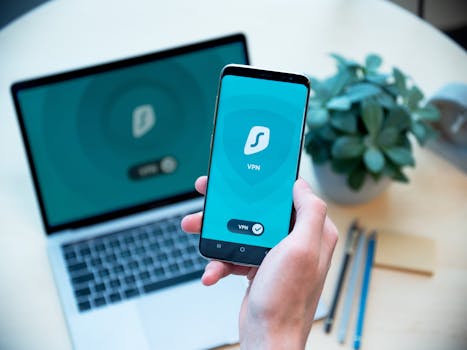
- Use a virtual private network (VPN) to encrypt traffic. This acts as a shield, keeping others from snooping on your info while you browse public connections.
- Turn off file sharing and AirDrop/Bluetooth to avoid surprises from strangers on the same network. Most devices let you disable these features in a few taps.
- Prefer logging in to accounts only when on secure, password-protected networks. Save banking or shopping tasks for your home or mobile internet.
- Log out of sensitive accounts before switching to public Wi-Fi. This stops hackers from hijacking your sessions if you’re suddenly disconnected.
- If a Wi-Fi network asks for unusual permissions or lots of personal details to connect, skip it. Trust your gut as much as your device’s warnings.
Applying these quick actions makes free Wi-Fi safer—without giving up the perks of remote work or casual chatting.
Smart Devices at Home: Privacy Routines for Everyday Living
Smart speakers, lights, and doorbells offer convenience but collect more data than traditional gadgets. Applying digital safety basics to these devices means customizing settings rather than accepting every default.
Many people ignore device permissions after the first setup. Actually, making time for a privacy check every few months can prevent your conversations and activities from being overshared or misused.
Review Permissions and Voice Recordings Regularly
Open each smart device’s app and scroll through permissions. Turn off access to microphones or cameras when not essential for day-to-day tasks. Some platforms let you delete voice recordings—take a minute each month to clear your history.
When you add a new device, resist “set and forget.” Instead, ask yourself if all requested features make sense. Sometimes declining one extra setting blocks future annoyances or risks.
Keep Firmware Updated and Network Separate
Smart devices need updates. These often contain security patches. Schedule periodic checks or turn on auto-updates if your system allows. For connected devices, use a guest network separate from laptops and phones. If one gets compromised, your essential data stays isolated.
When in doubt, unplug smart gadgets you rarely use. Less exposure, less risk—and less background noise in your digital life.
Conclusion: Daily Efforts Add Up to Digital Confidence
Tiny rituals—pausing at new messages, locking screens, double-checking shared posts—add strength to your digital safety basics. You don’t need to become a tech expert to protect what matters.
Each section above introduced a new routine or mindset. With practice, slow clicks and smart shares become second nature, not just precautions. Living safer online happens habit by habit, not in one dramatic leap.
Try picking one lesson this week: maybe a better password pattern, or a quick review of device settings. Notice what changes—often, a small shift invites big peace of mind.