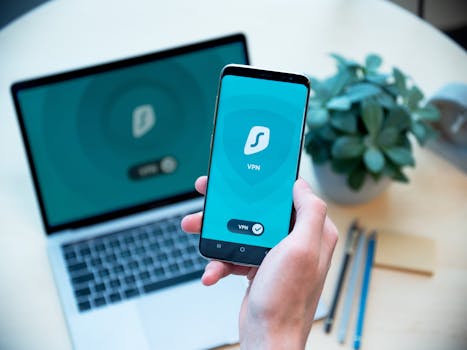
Ever wonder who might be watching your online moves the moment you log in to a new app? You’re not alone. Digital identity safety is an invisible shield, but cracks can appear where you least expect them.
Every tap, click, or swipe in connected apps draws a map of your life—one that hackers, companies, or even opportunistic strangers may try to use. That’s why digital identity safety isn’t just technical jargon. It touches every account you create, photo you share, and password you forget to update.
If you’ve ever paused before granting an app permission or questioned if something felt “off,” you’ve already taken the first step toward protecting your digital world. Let’s explore practical ways to make sure your identity stays yours.
Checking the Locks Before Opening New Doors
The first move in digital identity safety is learning to vet every new app the way you would check a hotel room for a dodgy lock. A quick look at privacy practices could mean the difference between security and headaches down the line.
Some permissions are like loaning someone your front key for an afternoon. Others are like handing over every spare key you own—plus your alarm code. Understanding the difference keeps your digital home firm.
Spotting Trustworthy Apps: The Basic Checklist
One effective step is scanning app ratings and user reviews. People are surprisingly quick to report sketchy behaviors, unexpected data grabs, or sudden account lockouts. It’s the equivalent of reading hotel reviews before booking.
Always skim the app’s privacy policy—even for a minute. Look for clear answers on what’s collected, how it’s used, and whether your info is resold or shared. If things sound vague or overly complicated, that’s a warning sign.
Telling Red Flags from Simple Requests
Not all permission prompts deserve a yes. Some are essential for an app to function, like access to photos for editing software. But if a flashlight app asks for your contacts or GPS, pause. Why would it need those details?
Use cautious wording when agreeing to permissions. If an app gives you options, stick with “only while using” instead of blanket permission. You can always expand access if needed later, but shrinking it gets tricky.
| Scenario | Common Request | What to Look For | What To Do Next |
|---|---|---|---|
| Photo Editing App | Requests access to photos/camera | Needed for editing; check for extra data usage | Allow limited access; check privacy settings |
| Simple Game | Requests contacts/location | Usually not needed | Deny; choose another app if it insists |
| Fitness Tracker | Requests location/health data | Vital for core function | Allow; review how data is stored/shared |
| Flashlight App | Requests contacts or microphone | Major red flag | Deny; uninstall immediately |
| Messaging Platform | Requests camera, mic, contacts | Standard for media features | Allow as needed; tighten outdated permissions |
Reinforcing Passwords: Layering Your Defenses
Strong passwords still sit at the center of digital identity safety. They’re not just for protecting your bank accounts—they’re also your first barrier in everything from online shopping to movie streaming profiles.
One weak password, reused across apps, is like using the same swipe card for every door on your street.
Crafting Password Rules That Stick
Think in sentences, not single words. “Spring2024!DeliveryPizza” beats “spring24.” Length and unpredictability are better than any pile of symbols you’ll instantly forget.
Set a calendar reminder—quarterly works well—to look over your passwords. Swap out those that guard valuable accounts, especially where financial or private info lives.
- Create passwords 14+ characters to fight brute-force attacks; use memorable phrases drawn from real-life events for easy recall.
- Update passwords after suspicious emails or weird app requests. Quick action stops intruders before they ramp up damage.
- Deploy password managers to generate, store, and autofill. This reduces risk from weak or recycling passwords across platforms.
- Avoid using pet names, birthdays, or public details. Social media clues can help attackers guess your go-to phrases quickly.
- Never share passwords, even with friends. If you must, use secure vault-sharing features with audit logs for transparency and fast revoking.
One quick adjustment could protect dozens of logins. Review the weakest link in your routine first.
Adding Extra Locks with Two-Factor Authentication (2FA)
A text code or authentication app doubles your digital door. Even if a password leaks, that second prompt blocks most uninvited guests cold.
Set up 2FA on your main accounts first: banking, email, and cloud storage. Expand to social or health apps as time allows.
- Enable 2FA where available, starting with primary email, financial institutions, and high-value accounts for fast protection.
- Avoid SMS codes if possible; authentication apps or security keys resist hacking techniques better than text messages.
- Safeguard your backup codes. Store them offline or in secure password managers, never inside an unsecured document or email folder.
- Regularly check which devices are authorized to access your accounts. Deauthorize old phones or browsers after upgrades or loss.
- Test your 2FA before a trip. Losing access abroad creates a frustrating lockout; know how to restore entry if you’re away from home tools.
Even one layer of two-factor makes your digital identity safety significantly sturdier—especially against the most common forms of account takeover.
Permission Dialogue: Asking the Right Questions
Developing good habits around permission requests is like teaching yourself to ask, “Do I really need to open this door?” every time a new prompt pops up.
Digital identity safety isn’t a one-time choice. It’s a routine, refined whenever a new app asks for more than you’d typically give a helpful neighbor.
Making Decisions on the Go
Suppose you install a travel app that suddenly wants access to your microphone. One way to handle this: deny first, then see if the app still works. Often, nothing breaks.
If a function fails, grant temporary access just for booking calls, then revoke it post-trip. This keeps your data footprint lean and tidy.
Permission Fatigue: Stopping the Yes Reflex
After the fifth prompt in a busy afternoon, it’s tempting to hit “Allow” for everything. Resist. Mental fatigue is a favorite gap for social engineering attacks to slip through.
Take a five-second pause before each yes. Ask yourself what you’re really allowing and whether you’ll remember this choice a day later.
Keeping App Connections in Check: Reviewing and Unlinking
Each invitation to “connect” another app or website adds a small door to your main digital identity. Over time, these doors can accumulate—some half-forgotten and rarely checked.
Old connections can act like spare keys, passed around without you realizing. Reviewing them unclogs your digital pathways and patches security gaps.
Pruning Old Access: Clean Up Unused Links
Dive into your primary accounts—think social logins, email, and cloud storage—and look for third-party site connections. You may be surprised by a long-lost fitness app or quiz platform with lingering access.
Disconnect anything you haven’t used in the past three months. This simple step limits exposure if one of those apps suffers a data breach.
- Find the “connected apps” or “security settings” page in each major account dashboard; this is where link management lives.
- Unlink accounts you don’t recognize. If you’re unsure, research before disconnecting to avoid breaking a wanted service.
- Mark recurring calendar reminders to check connections quarterly; combine this with your password update routine for efficiency.
- Avoid connecting apps just for convenience. Manually logging in often creates stronger boundaries between services, limiting spillover if one gets hacked.
Minimal connections mean fewer entry points. Building this habit strengthens digital identity safety by shrinking your risk zone.
Preventing Social Overlap
Social sign-ins (“Log in with Google/Facebook/Apple”) are popular, but sometimes they mix your social and work lives in surprising ways.
Before using a social login, imagine how it feels if your professional contacts or old friends can view your app activity. If that’s uncomfortable, opt for an email or standalone account instead.
App Updates: Staying a Step Ahead of Exploits
Updates don’t just bring new emoji or faster features. Every update can slam the door on a new exploit or data vulnerability before attackers even know it’s open.
Letting updates slide is like leaving a window cracked for weeks and hoping nobody notices. Quick updates lock things tight again.
Setting an Update Ritual
Try a weekly routine: check your phone’s update center on Sunday nights. This keeps critical patches recent, especially in banking, social media, or shopping apps.
Turn on auto-update where it makes sense, but review permissions after each upgrade. New features sometimes add fresh data requests.
Beware Third-Party App Stores
App stores outside mainstream ones often skip security checks. If you must download elsewhere, confirm the developer’s background and watch for typos or extra permissions.
Prefer verified platforms whenever possible. They’re not foolproof, but your odds of tripping into malware or data-harvesting scams drop dramatically.
Analogies That Work: Digital Safety Lessons from Real Life
Imagine storing your most precious recipes in a kitchen cabinet. You’d never leave that unlocked before a party—so why skip lock-ups online?
Digital identity safety is like checking who you let into your home. Once you start treating digital habits like house rules, caution becomes second nature instead of a chore.
Micro-Habits for Stronger Digital Boundaries
Main habits, like reviewing permissions or updating passwords, protect your identity. But small tweaks—such as pausing before logging in on public Wi-Fi—make a surprising difference over time.
Even setting your privacy to “friends only” instead of public shares can block accidental oversharing of private information. These micro-habits pay off as daily routines.
Real Moments, Real Habits
Picture Jen, who always double-checks app permissions before a vacation. One time, she caught a travel app seeking calendar access for “exclusive offers.” She declined and avoided an inbox full of spam and holiday-vendor calls.
Turning vigilance into a quick evening check—before times get busy—let Jen spend more time on her trip, not dealing with cleanup. Her tip: “I ask if I’d give this info at a hotel front desk. If not, I keep it private.”
Good Digital Identity Habits Pay Off
Small choices—quickly reviewed permissions, better passwords, regular connection clean-up, and timely app updates—shape the foundation for strong digital identity safety. Each one works like a layer, making your digital life tougher to crack.
Remembering even a few habits from this article can shield your everyday identity from the most common threats in connected apps. No one needs to overhaul everything overnight; growth builds from small wins.
Try picking just one new practice—maybe reviewing your app connections or setting a password reminder this week—and see how it fits your routine. Small steps stack up fast.