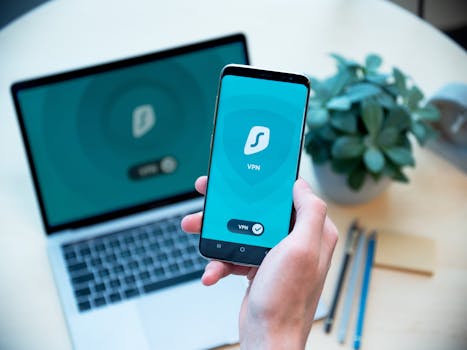
You probably unlock your phone more times a day than you’d ever guess. Taps, glances, swipes—each short moment offers a surprising glimpse into your private digital world, often protected by invisible smartphone security tools.
Think about what your smartphone holds: family photos, location history, personal messages, and sometimes even your home’s digital key. It’s not just a device—it’s a vault. Yet, many don’t realize how modern phones actively defend against real threats every single minute.
This article unpacks what’s really shielding your data—offering a behind-the-scenes look at built-in smartphone security tools, their practical impact, and how you can get the most from them.
Layered Defenses: The Gatekeepers in Your Pocket
Securing a smartphone requires more than just a passcode. Real protection starts with layers of smartphone security tools that block, detect, and respond to malicious attempts.
Imagine someone finds a lost device. Instead of instant access, they’re met with virtual walls: biometric sensors, encryption, and locked-down app permissions. Each layer buys you time and keeps your information out of reach.
Biometric Locks: Keeping Out Intruders
Modern smartphones rely on biometrics—fingerprint readers and facial recognition—to ensure instant locking. When your phone’s screen wakes, these tools scan for your unique traits only—others can’t just guess a code.
Sometimes, trying to fool biometrics results in temporary lockouts or requests for extra authentication. The phone reverts to a backup PIN, giving you a final say if biometrics fail.
Encryption: Turning Information into Secret Code
Encryption runs quietly, translating your emails, messages, and photos into unintelligible data. Without your chosen unlock method, nobody can read your saved information—even if they physically open the hardware.
Ever misplaced a phone? Advanced encryption reassures you—no one can browse your data, not even the most tech-savvy technician.
| Security Feature | How It Works | Usability | Takeaway Action |
|---|---|---|---|
| Fingerprint Lock | Uses unique fingerprints for access | Fast, one-touch | Enroll multiple fingers for backup |
| Face Unlock | Identifies facial features | Hands-free, secure | Enable with attention checks if possible |
| Device Encryption | Scrambles stored data | Invisible daily | Keep device passcode strong |
| Secure Boot | Verifies software at startup | Automatic every restart | Avoid disabling system protection features |
| App Permission Controls | Blocks app data access | Customizable anytime | Review permissions monthly |
Real-World Actions: Setting Boundaries for Every Tap
Every new app asks for permission. Smartphone security tools silently enforce boundaries—limiting what apps can see, touch, or transmit about you.
Consider: A photo editor requesting microphone access is a red flag. Practical boundaries mean tighter safety.
Smart App Permissions: Only What’s Needed
Start by reviewing app permissions. Many people discover unnecessary access—“Why does my flashlight need location?” Limiting these privileges restricts data leaks or background spying.
- Check app permissions monthly so you catch creeping changes and outdated access.
- Deny camera or mic access for apps where you don’t use those features. It removes a hidden eavesdropping risk.
- Use new operating system updates—permissions are often retroactively limited, tightening your privacy instantly.
- If an app malfunctions without access, ask if you really need that app or if a safer alternative exists.
Just a few minutes spent customizing permissions often blocks dozens of risky data requests in daily use.
Background Activity Control: What’s Running When You Aren’t Looking
Ever notice battery draining faster after installing a new app? Background processes often indicate security or privacy risks.
- Restrict background data use so apps only run when you’re active—protects both privacy and battery life.
- Audit installed apps quarterly, uninstalling ones you no longer use. Old apps can become neglected targets for malware.
- Look for notifications about background access and take immediate action—these are often hints at misused permissions.
- Set up battery usage alerts which double as early warning signs—spikes can reveal troublesome background behaviors.
Getting proactive with background controls stops silent data collection—giving you practical peace of mind every day.
Safeguards that Adapt: Updates, Patches, and the Security Drill
While major threats change monthly, one constant is your device’s update schedule. These updates aren’t just aesthetic—they patch real vulnerabilities found by researchers and attackers alike.
An unpatched phone is often a target. Patches turn each device into a moving target instead—harder to infiltrate or exploit.
Automatic Updates: No Excuses
Hands-off security has become possible as most smartphone security tools handle updates automatically. Turning this off, even by accident, creates risk windows that attackers love.
Scheduling a “weekly recharge and update” session ensures both your phone’s longevity and robust defensive coverage.
Learning from Security Drills at Home
Households sometimes experiment: “Let’s review all devices for missed updates.” Each person checks their phone, sometimes discovering a twice-postponed system patch.
That short walk-through, paired with a quick group chat about new security features, creates a healthy, proactive habit—one that’s easier than emergency clean-up later.
Device-Wide Protections: When One Setting Shuts the Door
Global security options, like Find My Device and remote wipe, turn a lost or stolen phone into a useless brick. One setting, and a would-be thief is left empty-handed.
Scenario: Your phone slips out of your bag in a cab. Within moments, you use your laptop or a friend’s phone to locate, lock, or erase all sensitive data.
Find My Device: A First Line of Defense
Enabling this service links your phone’s location to your account, letting you view its whereabouts on a map. You can also trigger ringing, display a contact message, or lock remotely.
If recovery looks hopeless, initiate a remote wipe. Even if disconnected from the internet, your phone erases itself as soon as it reconnects—protecting banking details, medical information, and private photos.
Factory Reset Protection: Don’t Make It Easy
Smartphone security tools prevent unauthorized resets. Without the original account credentials, a thief finds the device locked, even after a factory reset attempt.
It’s a simple barrier with a massive impact—turning post-theft data loss into an avoidable disaster.
Phishing Shields: Guardrails Against the Clever Attack
Phishing scams have evolved beyond email—they now appear as texts, pop-ups, or even fake device alerts. Built-in shields block unsafe links and encourage skepticism with every tap.
A friend forwards a suspicious link. Before you even open it, your device’s safety net analyzes it in real time, displaying a warning or blocking direct access.
Browser and Messaging App Filters
Modern smartphone security tools scan incoming links, looking for signals of fraudulent websites or malware. Real-time analysis flags threats before your curiosity leads to regret.
Text message previews rarely auto-load links, providing you with crucial seconds to think before tapping blindly.
Phishing Experiment: Test Yourself Periodically
Try this at home: deliberately send yourself a mock phishing message using obvious bait. Watch how your security app flags or blocks it—do you recognize the warning?
When you see a “suspicious link blocked” popup, you’ve just witnessed digital teamwork between your instincts and your device’s automated guards. Consider this your training ground for real scams.
| Phishing Attempt Type | How the Shield Reacts | What to Watch For | Next Step for User |
|---|---|---|---|
| Suspicious Link in SMS | Warning or auto-block | Shortened URLs, urgent requests | Delete or report the message |
| Email with Fake Attachment | Downloads blocked unless confirmed safe | Strange sender addresses, odd file types | Scan file or ignore |
| Fake Update Pop-Up | Blocks installation, flags popup | Urgency, spelling errors, odd logos | Close immediately and scan device |
| Malicious Website Link | Preview disables auto-loading, warning shown | Unusual domain names, login prompts | Back out without entering details |
| Calendar Spam Invite | Blocks auto-add to calendar | Unknown sender, unclear event names | Remove and adjust sharing settings |
Small Habits, Big Impact: Practical Steps for Everyday Safety
Knowing about advanced smartphone security tools means little if unused. Adopting habits—whether once a week or on impulse—turns potential weaknesses into everyday strengths.
It’s not about perfection. Instead, focus on setting “default defenses” that work even when you’re busy or distracted.
- Set a strong device passcode and change it every 6–12 months. Predictable codes like “1234” make you the low-hanging fruit.
- Turn on two-factor authentication for sensitive backups and accounts. This adds an extra checkpoint for trespassers.
- Regularly check installed apps and remove any you haven’t opened in months. Each app is a possible new entrance to monitor.
- Schedule a recurring “security check-up” reminder, pairing it with device cleaning or software updates.
- Share your favorite security tips with family and friends over coffee or a meal—turn security from a worry into a shared ritual.
Simple routines beat advanced features left idle. Even world-class smartphone security tools need your back-up in the real world.
When Security Meets Convenience: Avoiding Common Pitfalls
Many defenses risk becoming frustrating if poorly set up. Small tweaks help blend protection with a frictionless day-to-day experience—no need to compromise between security and sanity.
Comparing two setups—a phone with biometrics only, versus a mixed system—shows how layered defenses act as both shortcuts and backup plans. You don’t have to choose between fast access and safe storage.
Face ID and Quick Unlocks: When Speed and Safety Agree
With smartphone security tools offering Face ID or fingerprint unlock, you avoid entering codes in public or while driving. Fewer interruptions mean you’re less tempted to disable features for convenience.
For work apps with strict login rules, biometrics keep the process seamless while still blocking unauthorized users—speed meets security without stress.
App Lockers and Secure Folders: Hidden Layers for Sensitive Items
App lockers add an extra layer to banking, health, or notes apps. Even if someone borrows your phone, these protected spaces require a separate unlock—one that isn’t bypassed by simple mistakes.
Analogous to a home safe inside a locked house, these tools offer peace of mind if you share devices with kids or friends for games, photos, or calls.
Final Thoughts on Everyday Phone Defenses
Smartphone security tools have evolved into sophisticated defenders—more effective and invisible than ever before. Each layer, from biometrics to live phishing shields, serves a distinct real-world role.
Protection isn’t a one-off action; it’s a combination of device features, regular habits, and intentional decisions. Convenience and security work best as teammates, not rivals.
Try reviewing just one security habit from this article today—be it updating permissions or enabling remote lock. Small changes build up to major safety over time. Your digital self is worth that extra moment of effort.